How It Works
In all three flows (issuance, verification, and revocation), your system calls TCS API for DIW only. For how to call the API, see Issuance API, Verification API, and Revoke API.
Issuance flow
Section titled “Issuance flow”Each issuance uses one credential type (VC Template). The fields and the card face of the credential type must be created in advance. You send only the field values for this one credential.
- Ask the TCS team for a credential type (VC Template). See Request new credential types and verification scenarios.
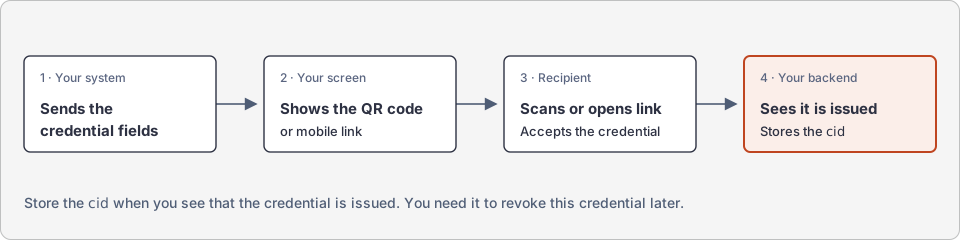
- Your system creates an issuance request through TCS API for DIW and sends the credential fields. It gets a QR code image (a base64-encoded PNG) and a mobile link. When the recipient opens the mobile link on a phone, the Taiwan Digital Identity Wallet (TW DIW, “the wallet” in this handbook) opens.
- Your screen shows the QR code or the mobile link.
- The recipient scans the QR code or opens the mobile link and taps to accept. The credential goes into the wallet. After the recipient accepts the credential, the recipient is the holder of that credential.
- Your backend polls and sees that the credential is issued. It also gets the
cid(credential identifier) and thecredential_serial(credential serial number) of this credential.
Store the cid and the credential_serial at step 4. You need the cid to revoke this credential later. You need the credential_serial to confirm, when you verify, that the holder presented this credential. If you did not store the cid, query again with the id of the original issuance. If the result still shows that the credential is issued, you get the same cid. If you did not store the cid and the original issuance can no longer be found, you cannot revoke this credential through the API.
For what to do if the recipient does not accept the credential, see Limits and Notes.
A new credential does not replace an old one. One holder can have more than one valid credential of the same credential type. To keep only one credential for each person, see Renewal.
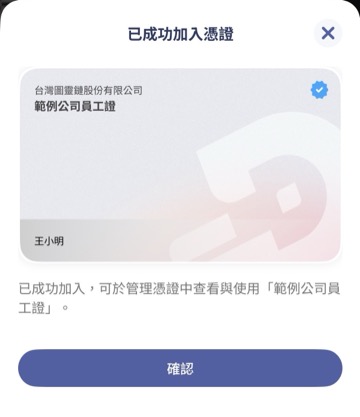
After the recipient scans, the wallet shows that the credential is added. The screen is in Chinese.
Verification flow
Section titled “Verification flow”Each verification uses one verification scenario (VP Template). The verification scenario must be created in advance. It specifies which fields of which credential types the holder must present.
- Ask the TCS team for a verification scenario (VP Template). See Request new credential types and verification scenarios.
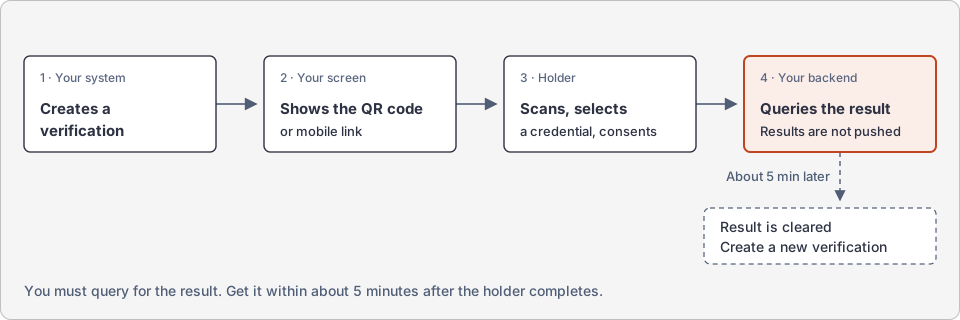
- Your system creates a verification request through TCS API for DIW. It gets a QR code image (a base64-encoded PNG) for the holder to scan with the wallet, and a mobile link. Store the
idfrom the response. You need it when you poll for the result. - Your screen shows the QR code or the mobile link.
- The holder scans the QR code with the wallet (or opens the mobile link), selects the credential to present, and then consents to present it.
- Your backend polls for the result and gets the credential fields and the verification result.
The result is not pushed to you. Your backend must poll for the result. The recommended polling interval is 2 to 5 seconds. Set a reasonable timeout. The recommended timeout is 5 minutes. After the holder completes the presentation, the verification result is kept for about 5 minutes. Then it is cleared. After that, you cannot get the result, and you must create a new verification.
On the presentation screen, the wallet shows 「提供資料的對象:台灣圖靈鏈股份有限公司」. On a phone set to English, it shows “Data will be shared with Turing Space”. The done screen says that the data was sent to 台灣圖靈鏈股份有限公司 (“You have authorized the data to be sent to Turing Space” in English). On these two screens, the wallet shows Turing Space Inc. as the party that receives the data. You cannot change this.
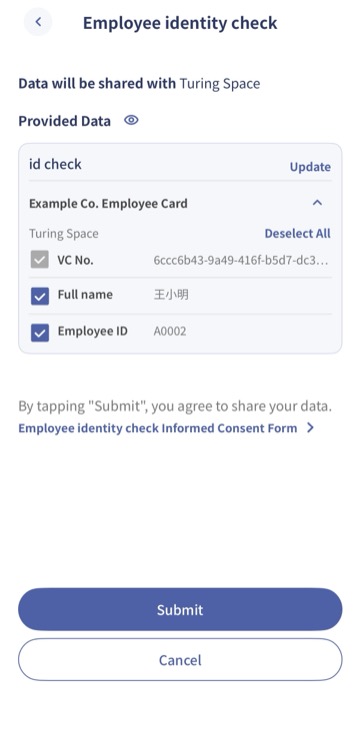
On this screen, the holder confirms the fields to present and taps Submit.
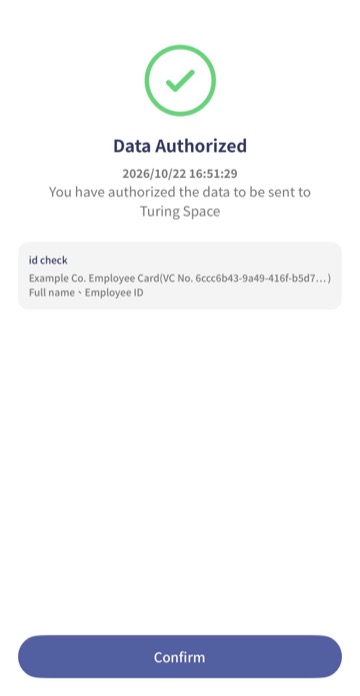
After the holder sends the data, the wallet shows “Data Authorized”.
Revocation
Section titled “Revocation”You revoke a credential with its cid. After you revoke a credential, it is permanently invalid. You cannot restore it. In our tests, within about one minute after revocation, the holder’s wallet shows that this credential is invalid (「已失效」, or “Expired” when the phone language is English).
Revocation affects only this one credential. The other credentials of the same holder do not change. This includes another credential of the same credential type.
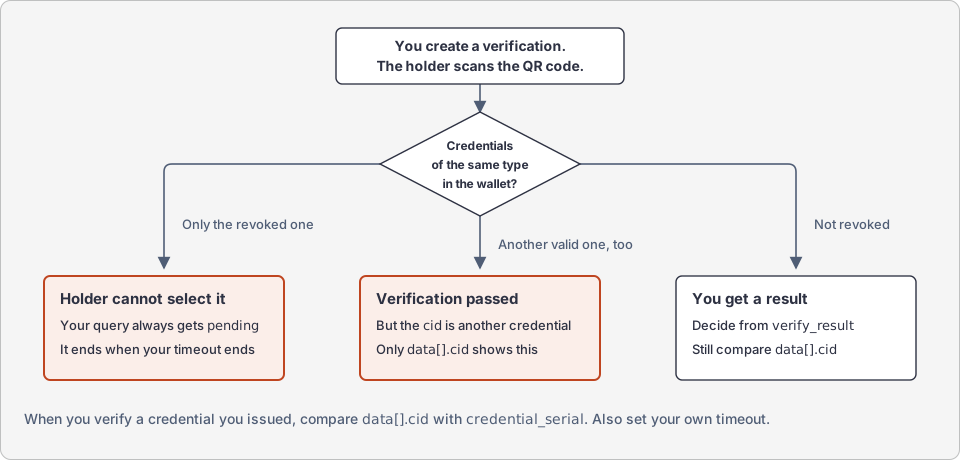
What you see when you verify after revocation
Section titled “What you see when you verify after revocation”The wallet does not let the holder select a revoked credential, so the revoked credential does not appear in the verification result.
What you see depends on the other credentials of the same credential type in the holder’s wallet:
| In the holder’s wallet | The result you see |
|---|---|
| Only the revoked credential | The wallet does not let the holder select this credential, so the wallet sends no data. The status stays pending (waiting) for the full timeout that you set. |
| Another valid credential of the same credential type | The holder presents the other credential. The verification passes (verify_result: true), but the cid belongs to the other credential. |
| The credential is not revoked (normal case) | You get a verification result. Use verify_result to decide whether it passed. You must still compare data[].cid. |
Your system must do two things:
- Check which credential the holder presented. If you must make sure that the holder presented a specific credential that you issued (for example, because you revoked one of them), compare
data[].cidin the result with thecredential_serialthat you stored at issuance. For the method, see Verification API. When you verify credentials that other organizations issued (for example, a driver’s license), you have nocidto compare. Use the verification result (verify_result), the credential type identifier (credential_type), and the field content (claims) to decide whether to accept the credential. - Set your own timeout. If the status stays
pending, end this verification when the timeout ends. The recommended value is 5 minutes.